Home › Blog › How to Make a Newborn Announcement Video
How to Make a Newborn Announcement Video
Last updated: October 15, 2026
A step-by-step guide to building a short, well-paced newborn announcement video with the right photo order, a reveal slide, and gentle music.
Published
Quick answer
To make a newborn announcement video, pick ten to fifteen photos from before and after the birth, order them to build toward a name-and-date reveal slide, add a gentle song, and export as MP4 to share with family.
Key takeaways
- Lead with anticipation photos, end with the name and birth date reveal
- Ten to fifteen photos is enough — more makes people skip ahead
- Give the reveal slide more screen time than any other photo
- Use a soft filter so hospital and home photos match in tone
- Export at 1080p so the video stays sharp on a TV or tablet
The quickest way to make a newborn announcement video is to pick ten to fifteen photos from the hospital and first days home, order them so they build toward a reveal, and add a gentle song underneath. You can do the whole thing from your phone in under ten minutes with Photo Video Maker.
What should a newborn announcement video actually include?
A good newborn announcement video is short and focused on one clear reveal, not a scrapbook of every photo taken that week. Build it around a handful of moments: the first glimpse of your baby, a close-up of tiny hands or feet, and a slide with the name, birth date, and weight for family who have been waiting to hear.
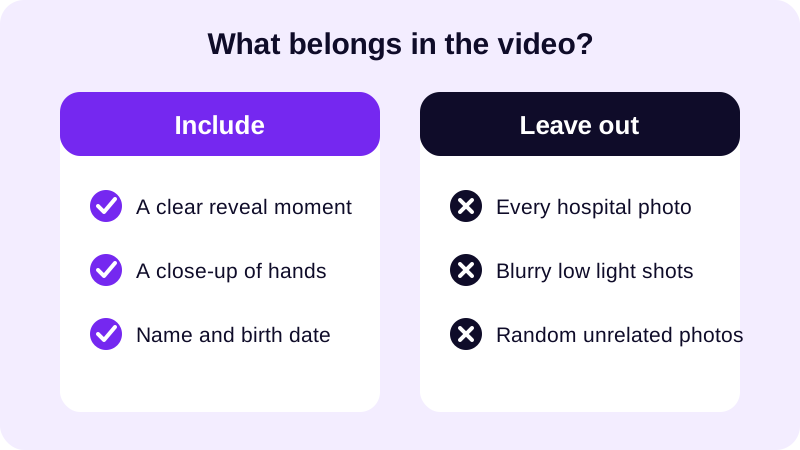
If you're not sure which photos to use, grab two or three from the hospital, two or three from the first days home, and one clear shot of the whole family together. That mix tells the story on its own, without needing captions to explain what's happening in every single frame.
It also helps to think about who will be watching. Grandparents and close family usually want the fuller version with more hospital detail, while an Instagram or TikTok post works better shorter and tighter, with just the highlights. You don't need two separate videos — just keep your photo count on the lean side so the one version works for both.
How do you actually put the video together, step by step?
Once you've picked your photos, building the video itself only takes a few taps. Here's the order that works well for a newborn announcement, start to finish.
- Open the app and select your photos from the gallery, then use drag and drop to put them in order — anticipation shots first, hospital moments next, home photos after.
- Choose a vertical aspect ratio if you're sharing to Instagram or TikTok, or a widescreen one if you're sending the video straight to a family group chat.
- Pick a soft filter from the 17+ filters available so the colors feel warm and consistent, even across photos taken in different lighting.
- Add a text slide near the end with the baby's name, birth date, and weight — this is the actual reveal, so give it a beat longer on screen than the other photos.
- Choose a gentle track from the music library, or import a lullaby or a song that means something to your family.
- Preview the whole thing with real-time preview, check that the reveal slide reads clearly, then export and save.
A frame overlay can add a nice finishing touch, too. With 249 frame overlays to choose from, you can find something soft and simple — a plain border or a gentle pastel edge works better here than anything too busy, since the photos themselves should stay the focus. Text and stickers are useful for small details as well, like a little heart next to the baby's name or a short "welcome" above the first photo.
What photo order works best for the reveal?
Order matters more than photo count. Lead with anticipation — a belly photo, the car seat waiting by the door, or the hospital bag packed and ready — then move into the arrival itself, and save the name and birth date for last so it lands as an actual reveal instead of getting buried somewhere in the middle.
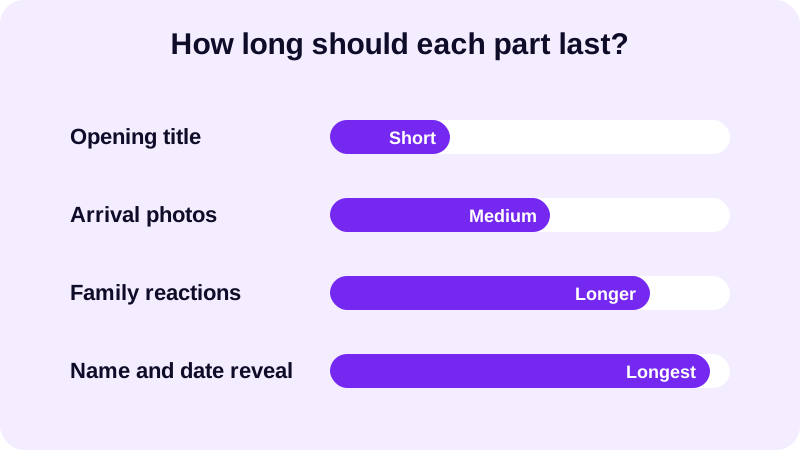
Ten to fifteen photos is usually enough for this kind of video — long enough to tell the story, short enough that family members actually watch it all the way to the end instead of scrolling past it. If you want more guidance on pacing beyond a newborn announcement, the guide on slideshow video length covers how long each photo should stay on screen for different occasions.
Transitions matter here too, even if it's easy to overlook them. With 8 transition effects available, pick something soft like a gentle fade between photos rather than anything flashy. A newborn announcement is a quiet, tender kind of video, and a sharp or spinning transition tends to clash with that tone.
What music and sharing format should you pick?
A newborn announcement calls for something warm and unhurried — a soft piano piece, an acoustic track, or a gentle lullaby, rather than anything upbeat or loud. If you want to understand what's safe to use before posting publicly, the royalty free music for videos guide walks through where to find tracks that won't cause problems later.
For sharing, export as MP4 so the video plays cleanly on Instagram, TikTok, WhatsApp, and YouTube without needing any conversion first. If you're posting to Instagram Stories or Reels, a vertical frame fills the screen properly instead of leaving bars on the sides — the best aspect ratio for Instagram Reels guide shows exactly how to set that up before you add your photos.
Your photos don't need to come from a professional camera. Photo Video Maker works with JPG, PNG, and WebP files straight out of your phone's gallery, so whatever your partner or a nurse snapped on a phone in the hospital room will drop in just fine. The filter step is what makes everything feel consistent afterward, blending a slightly yellow hospital-room photo with a bright, naturally lit one from home.
Once the announcement is out, you'll likely be making more baby videos before long — a baby shower slideshow before the birth, and a first birthday slideshow a year later. Photo Video Maker keeps your filter and music choices saved, so each new video goes a little faster than the last one. For more ideas on building any kind of photo video from scratch, the guide to making a video from photos with music covers the basics in more depth.
Frequently asked questions
How many photos should a newborn announcement video have?
Ten to fifteen photos is usually the sweet spot. Enough to tell the story from anticipation to arrival to the reveal, but short enough that family members watch the whole thing instead of scrolling past it halfway through.
What should the reveal slide actually say?
Keep it simple: the baby's name, birth date, and weight on their own text slide near the end. Let it sit on screen a beat longer than the other photos so people have time to actually read it before the video ends.
What kind of music fits a newborn announcement video?
Something warm and unhurried works best — soft piano, acoustic guitar, or a gentle lullaby. Avoid upbeat or loud tracks, which feel mismatched against quiet hospital and home photos.
Should the video be vertical or widescreen?
Vertical fits Instagram and TikTok, since it fills the screen with no bars on the sides. If you're sending it straight to a family group chat instead of posting publicly, widescreen works just as well.
Can I use phone photos, or do they need to be professional?
Phone photos work fine. A soft filter helps blend photos taken in different lighting — hospital rooms versus a sunny nursery — so the whole video feels consistent even without professional shots.