Home › Blog › How to Make a First Birthday Slideshow
How to Make a First Birthday Slideshow
Last updated: October 13, 2026
A step-by-step guide to choosing photos, music, and export settings for a first birthday slideshow made in Photo Video Maker.
Published
Quick answer
The quickest way to learn how to make a first birthday slideshow is to gather 20-30 photos from the whole first year, add them to Photo Video Maker in order, pick an upbeat song, and export vertical for phones or widescreen for a TV.
Key takeaways
- Use 20-30 photos spanning the whole first year, not just party-day shots
- Order photos month by month so the slideshow moves forward in time
- Pick an upbeat song to match a celebration, not a tribute
- Export vertical for phones and social apps, widescreen for a TV at the party
- Add text or stickers with the date and your baby's name to personalize it
If you want to know how to make a first birthday slideshow, the short answer is simple: gather photos from your baby's whole first year, drop them into Photo Video Maker in order, add music, and export it in the shape that matches where you'll share it. You don't need any video editing experience — just a phone full of photos and about fifteen minutes.
How many photos do you need, and which ones?
Aim for twenty to thirty photos that cover the whole first year, not just the party day itself — newborn shots, the first smile, first solid food, sitting up on their own, first steps, and the cake smash all belong in a proper baby's first year slideshow. A slideshow built only from birthday-party photos feels like one afternoon; one that spans the year feels like a whole life so far, which is exactly the feeling parents and grandparents actually want from it.
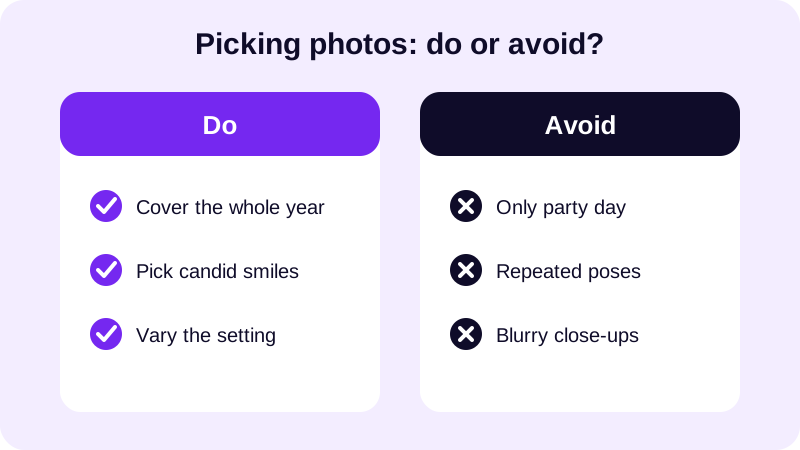
Pull photos month by month if you can, even just one or two per month, so the slideshow naturally moves forward in time instead of jumping around. Skip the near-duplicate shots of the same pose at the highchair — pick the one where your baby is looking at the camera or mid-laugh, and move on to the next month. For a sense of how many photos actually fit a video of a given length, this guide on slideshow timing breaks down how many seconds each photo typically gets.
What's the step-by-step way to build it in Photo Video Maker?
Once your photos are chosen, building the actual slideshow takes just a few taps. Here's the order that works well for a first birthday video:
- Open Photo Video Maker and select your first birthday photos from the gallery, using drag and drop to put them in the order you want, month by month.
- Choose an aspect ratio that matches where you'll share it — vertical for phones and social apps, widescreen if it's headed for a TV screen at the party.
- Apply a filter to set the mood — something warm and bright suits a first birthday better than a moody or dark tone.
- Add a frame overlay if you want a themed border around the party photos — there are 249 frame overlays to pick from, including birthday-friendly styles.
- Use text and stickers to label the date or your baby's name over a key photo, then pick a song from the music library or add your own audio.
- Watch the real-time preview, fix anything that feels off, then export the finished video.
Because every filter and frame shows up in the preview right away, you can try a couple of looks on the first few photos before committing to one for the whole slideshow.
What music fits a one-year-old's birthday video?
Pick something upbeat and warm rather than anything slow or sentimental — a first birthday is a celebration, not a tribute, and the first birthday slideshow music should feel like it. Photo Video Maker's built-in music library gives you options without needing to track down a song yourself, and if you already know your baby's favorite tune or a family song, you can add your own audio instead. For more on where music comes from and how it works, see this guide to royalty free music for videos.
Keep the whole video on the shorter side — family members watching on a phone in a group chat will happily sit through a couple of minutes but tend to skip past anything much longer. If you want a deeper walkthrough of combining photos and music from scratch, this guide to making a video from photos with music covers the same process in more detail.
How do you make it feel personal rather than just a photo dump?
A stack of photos in order is already nice, but a few small touches turn it into a real keepsake. Use text and stickers to add the date, your baby's name, or a short line like "one year of us" over an early or final photo — it gives anyone watching context without you having to explain it out loud. A themed frame overlay around the cake-smash section is a nice way to mark that moment as the highlight of the whole one year old photo slideshow.
If you're sharing it with extended family who live far away, a short caption or sticker naming the month also helps them follow along, since they may not recognize every outfit or room the way you do. These small details are what separate a generic collection of first birthday video ideas from one that actually feels made for your baby specifically.
What size should you export it in, and how long should it be?
Match the export shape to wherever the video is actually going to be watched. A video headed to a phone screen, Instagram, or TikTok looks best vertical, filling the whole screen with no black bars on the sides. A video you plan to play on a TV at a family gathering, or upload as a regular YouTube video, looks better widescreen instead.
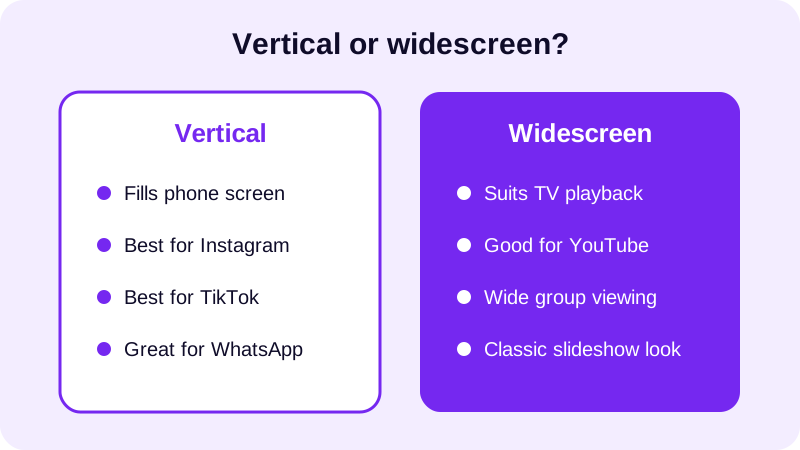
If you're not sure yet, export vertical first — most people will end up watching it on a phone via WhatsApp or a group text before anyone ever plays it on a TV. You can export the same project again in a different aspect ratio later, since your photo order, filter, and music choices stay saved in the project.
A first birthday slideshow is also a nice keepsake beyond the party itself — plenty of parents end up building one every year after, so it's worth saving the finished file somewhere safe once it's done. If you're already planning ahead for the party itself, this guide to baby shower slideshows has ideas that carry over nicely, and Photo Video Maker keeps your past projects easy to revisit when the second birthday rolls around.
Frequently asked questions
How many photos should I use for a first birthday slideshow?
Twenty to thirty photos is usually the sweet spot. That's enough to cover the whole first year without dragging on, and it keeps every photo on screen long enough to actually register with people watching, especially on a phone.
What music works best for a baby's first birthday video?
Something upbeat and warm fits better than a slow or sentimental track, since a first birthday is a celebration. Pick a song from the music library in Photo Video Maker, or add your own if your baby already has a favorite tune.
Should I include photos from before the party itself?
Yes. A slideshow built only from party-day photos feels like one afternoon. Pulling in a few photos from each month of the first year — first smile, first food, first steps — makes it feel like the whole year, which is the point.
What aspect ratio should I export a first birthday slideshow in?
Vertical if most people will watch it on a phone, in a group chat, or on Instagram or TikTok. Widescreen if you plan to play it on a TV at the party or upload it as a regular YouTube video.
How long should the finished slideshow be?
Keep it on the shorter side. Family watching on a phone will happily sit through a couple of minutes, but attention drops off fast after that, especially in a group chat where people are scrolling past it quickly.