Home › Blog › How to Make a Baby Shower Slideshow
How to Make a Baby Shower Slideshow
Last updated: October 8, 2026
A step-by-step guide to turning bump, ultrasound, and family photos into a baby shower slideshow with music, filters, and the right aspect ratio for sharing.
Quick answer
To make a baby shower slideshow, pick 12-20 bump, ultrasound, and family photos, load them into Photo Video Maker in order, add a gentle song and soft filter, then export vertical or widescreen depending on where you'll share it.
Key takeaways
- Twelve to twenty photos tells the story better than dumping in every photo on your phone.
- Save a gender reveal moment for the very end of the video, not the middle.
- Match your song length to your photo count so it doesn't cut off or trail into silence.
- Export vertical for WhatsApp and Instagram, widescreen for a TV or laptop at the party.
If you're wondering how to make a baby shower slideshow, the easiest way is to gather bump, ultrasound, and family photos, drop them into Photo Video Maker in the order you want them to play, add music and a soft filter, then export. You can have a finished video ready before the cake is even cut.
What photos should you gather before you start?
Start by pulling together photos that tell the story of the pregnancy, not just the party itself. Mix in the pregnancy announcement, a few bump photos from different months, the ultrasound picture, nursery shots, and photos of close family and friends who've been part of the journey. Twelve to twenty photos is usually enough to hold attention without feeling like a slideshow nobody asked for.
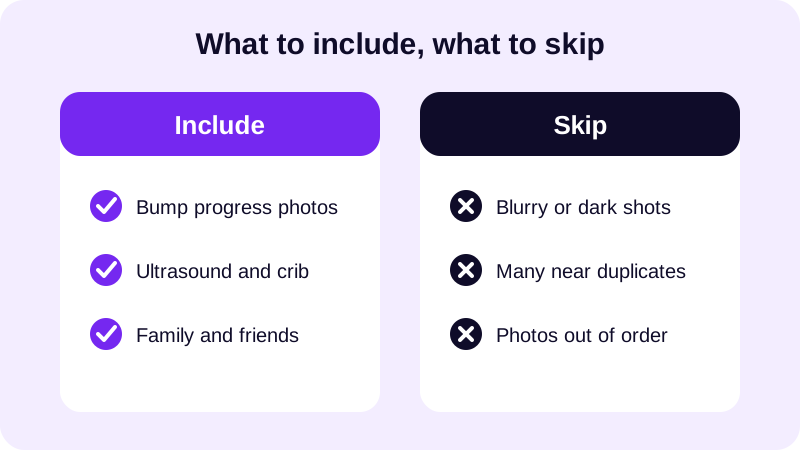
If this is also a gender reveal party, keep a few surprise photos or the reveal moment itself for last. Saving the big reveal for the end of a gender reveal slideshow gives the video a natural climax instead of burying it in the middle, where it gets lost between bump photos and shower games. It's also worth sorting photos loosely by month or trimester before you even open the app, so the order you drag them into later already follows a timeline instead of needing fixing afterward.
Think about who's going to be watching, too. A slideshow for close family can include more candid, in-between shots — a messy nursery mid-setup, an unposed laugh during the gender reveal — while one meant for a wider group of guests usually works better kept a little more polished. Neither approach is wrong; it just changes which photos you reach for first when you're narrowing down the pile.
How do you put the slideshow together step by step?
Once your photos are picked, building the actual video takes a handful of taps inside Photo Video Maker. Drag and drop your photos into the order you want, then work through the rest of the settings one screen at a time.
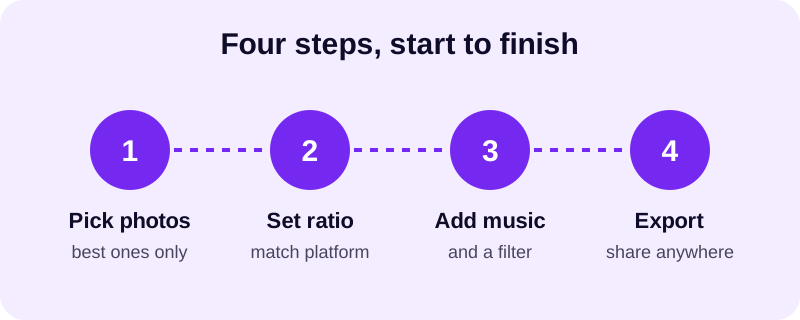
- Select your photos and drag and drop them into the order you want the story to play.
- Pick an aspect ratio — vertical if you'll share to Instagram or TikTok, widescreen if it's heading to YouTube.
- Apply one of the 17+ filters for a soft, consistent look, and add a frame overlay if you want a themed border — there are 249 to choose from.
- Choose a transition between photos from the 8 transition effects, something gentle rather than jarring.
- Add text and stickers for names, dates, or a due date, then choose a track from the music library or import your own.
- Check the result with real-time preview, then export as an MP4, in 1080p if you have the space or 480p for a smaller file.
None of these steps takes long on its own, but doing them in this order matters. Setting the aspect ratio before you add text and stickers means your captions land in the right spot instead of getting pushed off-screen when you change the shape of the video afterward. And picking a filter before music means you can judge the whole look and feel together, rather than adding a song to something that still looks unfinished.
What music fits a baby shower slideshow?
Soft, warm, and a little sentimental works better than anything upbeat and loud — this is a slideshow people watch together in a living room, not a dance video. The music library inside the app groups songs by mood, so look for something gentle rather than scrolling through every track hoping one jumps out.
If you already know the couple's favorite lullaby, or a song that played during the pregnancy announcement, that usually beats anything generic. Baby shower slideshow music means more to guests when it's tied to a real memory rather than just a nice-sounding track. For more on where to find tracks you can use freely, see our guide to royalty free music for videos.
It also helps to think about pacing, not just mood. A slower song gives each photo a bit more breathing room on screen, which suits a slideshow with meaningful, posed shots. A song with a touch more rhythm works if your photos lean candid and playful — a shower game mid-laugh, someone opening a gift a little too fast. Either way, keep the photo count and the song length roughly matched so the ending doesn't feel rushed or stretched out.
What's the best way to share the finished video?
Most baby shower slideshows end up in a group chat before anyone watches them on a big screen, so export with that in mind. A vertical video plays full-screen on a phone in WhatsApp or Instagram, while a widescreen export looks better if you're planning to show it on a TV or laptop at the party itself.
| Where you'll share it | Best aspect ratio | Why |
|---|---|---|
| WhatsApp group chat | Vertical | Plays full-screen on a phone without cropping |
| Instagram feed or Stories | Vertical | Matches the full-screen phone format |
| YouTube upload | Widescreen | Matches a standard laptop or TV screen |
| TV or laptop at the party | Widescreen | Fills the screen without black bars |
If you're not sure which ratio to pick, our guide on the best aspect ratio for Instagram Reels walks through why vertical video works so well on a phone screen, and the same logic applies here. For more baby shower video ideas — including how to turn a whole phone gallery into a video in the first place — see our guide on how to turn photos into a video on Android.
However you share it, keep a copy saved on your phone too. Photo Video Maker exports straight to your gallery, so the video of nine months of waiting doesn't just live inside a group chat that disappears later. It's worth exporting a slightly smaller version too, since a 480p file sends faster over a spotty venue Wi-Fi connection than a full-size 1080p one, and most guests won't notice the difference on a phone screen anyway.
You can build the whole thing, Free tier included, from Photo Video Maker on Google Play the same afternoon you get your photos together, and browse the blog for more ideas once it's ready to share.
Frequently asked questions
How many photos should I use for a baby shower slideshow?
Twelve to twenty photos is usually the sweet spot — enough to cover the pregnancy announcement, a few bump shots, the ultrasound, and the shower itself without dragging on so long that guests stop watching halfway through.
What music works best for a baby shower video?
Something soft and warm rather than upbeat or loud works best, since people usually watch this together in a quiet room. Pick a track from the music library that matches the mood, and trim it so it ends right when your last photo does.
Should I make the slideshow before or after the party?
Before, if you can — showing it during the party gives guests something to watch together and gives the parents-to-be a keepsake on the spot. You can always add a few shower-day photos afterward and re-export a second version.
What format should I export a baby shower slideshow in?
Export as an MP4, which plays everywhere without extra apps. Choose 1080p if file size isn't a concern, or 480p for a smaller file that's quicker to send in a group chat or over WhatsApp.
Can I include a gender reveal moment in the slideshow?
Yes — save it for the very end rather than the middle of the video. A gender reveal slideshow lands best as a climax, with the quieter bump and ultrasound photos building up to it instead of competing with it.