Home › Blog › Happy Birthday Video With Name and Photo: Easy Guide
Happy Birthday Video With Name and Photo: Easy Guide
Last updated: October 30, 2026
A step-by-step guide to turning a few photos and a name into a ready-to-share birthday video using Diya's templates, name art and music.
Published
Quick answer
To make a happy birthday video with name and photo, pick a birthday template in Diya, add a few photos, type the name as glowing name art, pick a song, and save — ready for WhatsApp Status in about 3 minutes.
Key takeaways
- Pick 4 to 6 clear, recent photos with the birthday person's face in focus
- Type the name once as name art — it becomes decorated lettering on screen
- Choose Outline, Neon or Matte name art to match the mood of the video
- Use beat-sync or lyrics mode so the video moves and reads with the music
- First 2 videos are free; after that, 1 free video a day in 720p with a small mark
The fastest way to make a happy birthday video with name and photo is to pick a birthday template in Diya, add a few photos, and type the name as glowing name art. The whole video comes together on your phone in about 3 minutes, ready to share on WhatsApp Status.
Which photos work best for a birthday video with a name?
Pick photos where the birthday person's face is clear and in good light — a close shot of them smiling usually works better than a wide group photo where everyone is small. Four to six photos is enough for a short video; more than that and the video starts to feel long for a status.
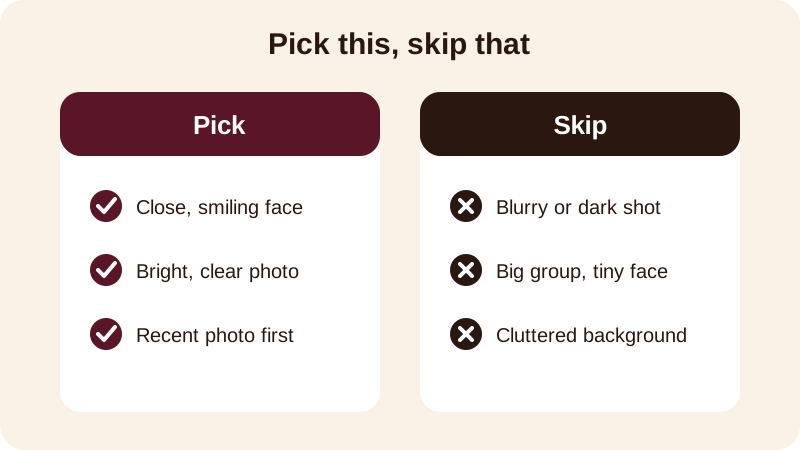
Keep the background behind the name simple — a plain wall, sky or a soft-coloured frame in the photo lets the name art stay readable on top of it. If you're making the video for a child or an elder, choose photos that show them clearly rather than action shots where they're turned away from the camera.
How do you make a birthday video with name and photo in Diya?
Once your photos are ready, the steps inside the app are quick and don't need any editing skill.
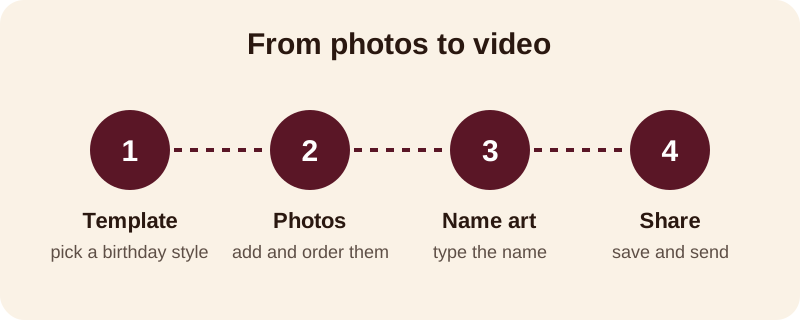
- Open Diya and choose a birthday template whose colours suit the person — bright for a child, softer for an elder.
- Add your four to six chosen photos and arrange them in the order you want them to appear.
- Tap the name art field and type the name — Diya turns it into decorated lettering instead of plain text.
- Choose a name art style, such as Outline, Neon or Matte, to match the mood of the video.
- Pick a song from the free music library, or choose a song already saved on your phone.
- Save the video and share it straight to WhatsApp Status or wherever you post it.
Beat-sync is already switched on, so the photos change in time with the music without any extra work from you. If you'd rather have the wish appear line by line with the song, switch on lyrics mode instead.
What should you write for the name and birthday wish?
Keep the wish short enough to read in a glance — one line on screen works far better than a paragraph. The name usually sits best on its own, with the wish as a second, shorter line underneath it.
A few lines that work well for most birthdays:
- Happy Birthday, Rohan — wishing you a year full of good news
- Happy Birthday Papa — stay healthy and happy always
- Many happy returns of the day, Meera
- Happy Birthday to the best didi — love you lots
- Wishing you joy, laughter and lots of cake, Aarav
If the video is for a child, the birthday number itself can go in the wish line rather than in the name art, so the decorated name stays just the name. For a parent or grandparent, a line that mentions the family — "from all of us" — makes the video feel like it's from everyone, not just whoever is holding the phone.
Which music and style suit a birthday video?
The template you start from already suggests a transition style and a song, but you can change either. Slide, Zoom and Fade are the transition styles Diya moves photos with, and each gives the video a slightly different feel.
| Name art style | Feels like |
|---|---|
| Outline | Clean and simple — good for elders and formal wishes |
| Neon | Bright and festive — good for friends and younger birthdays |
| Matte | Soft and warm — good for family videos and parents |
For music, the free music library has songs sorted for you to browse, or you can use a birthday song already on the person's phone or yours if that song means something to the celebration. Whichever you choose, beat-sync lines the photo changes up with the beat on its own.
How do you share the finished video?
Once you save the video, it sits in your phone's gallery like any other video, ready to send. Because every Diya video is made in 9:16, it fills the screen properly on WhatsApp Status and on Instagram, without black bars on the sides.
Send it directly to the birthday person first if the video is a surprise for them, then post it to your status afterwards. If you're planning ahead for a string of birthdays and festivals in the family, the festival status videos calendar can remind you a few days before each one so you're never making a wish video in a rush.
Your first 2 videos in Diya are free, and after that you get 1 free video every day — plenty for birthdays through the year. No account is needed to start, your photos are made into the video right on your phone, and the app has no ads either way. If you're making this for a baby's very first birthday rather than an adult, the steps are similar but the photo choices are a little different — see the guide to a first birthday slideshow. And if you want more on picking a song and syncing it to your photos, read how to add background music to photos.
Frequently asked questions
Can I put a name on a birthday video in Diya?
Yes. When you make a birthday video, type the name into the name art field and Diya turns it into decorated lettering on screen, instead of plain typed text. You can use the birthday person's name, a nickname, or a short line like 'Happy Birthday Priya'.
How many photos should I use for a birthday video?
Four to six photos is usually enough for a birthday video meant for WhatsApp Status or Instagram. Pick one strong, clear photo per moment rather than many similar ones, and put the best, brightest photo first so it grabs attention immediately.
Can I use my own song for the birthday video?
Yes. In Diya you can pick a song from the free music library or use a song already saved on your phone. Beat-sync changes the photos on the beat of whichever song you choose, so you don't have to time anything yourself.
Is the birthday video free to make?
Your first 2 videos in Diya are free, and after that you get 1 free video every day in 720p with a small 'Diya' mark and a short end card. Premium removes the mark and end card and unlocks Full HD 1080p, 4K on Android, and more templates.
Do I need an account to make the video?
No account is needed. You open the app, pick a template, add your photos, type the name, and save — the video is made on your phone and your photos are never uploaded anywhere.