Home › Blog › Haldi Ceremony Status Video: Easy Guide
Haldi Ceremony Status Video: Easy Guide
Last updated: October 29, 2026
A step-by-step guide to turning haldi ceremony photos into a music-backed 9:16 status video in Diya and sharing it to WhatsApp Status.
Published
Quick answer
To make a haldi ceremony status video, pick 4-6 bright haldi photos in a Diya template, add a song, type the names, and save — the video is ready in about 3 minutes for WhatsApp Status.
Key takeaways
- Pick 4-6 bright haldi photos — turmeric hands, laughing faces, petals — for the best status video
- Diya turns photos into a 9:16 video with music in about 3 minutes, ready for WhatsApp Status
- Use your own phone song or the free music library; beat-sync times photos to the music automatically
- Add names with glowing name art in styles like Outline, Neon or Matte
- First 2 videos are free, then 1 free video daily in 720p; Premium unlocks 1080p/4K and removes the mark
The fastest way to make a haldi ceremony status video is to pick four to six bright haldi photos in a template, add a song and type the names — Diya puts it together as a vertical video in about 3 minutes. You can save it straight to your phone and share it to WhatsApp Status before the function even winds down.
What photos work best for a haldi ceremony status video?
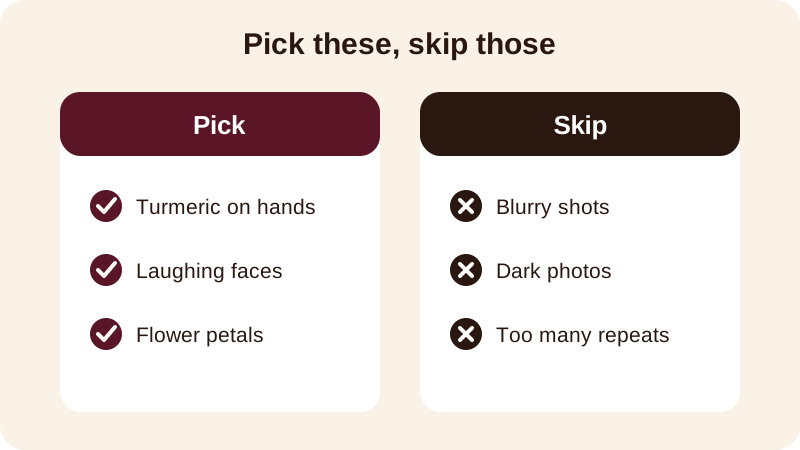
Haldi photos are naturally colourful, so the video almost edits itself if you pick the right shots. Go for close-ups of turmeric paste on hands and faces, the bride or groom laughing mid-application, flower petals being tossed, and the aunties and cousins dancing around in yellow. A few wide shots of the whole family help too, but close, bright faces always read better on a small phone screen than a distant group shot.
A few more ideas worth including, if you have them:
- The haldi thali being carried to the mandap
- Grandparents applying haldi with a gentle smile
- Siblings or friends covered in turmeric, mid-laugh
- A close shot of hands joined together in the paste
Order matters too. Put your brightest, most colourful photo first — turmeric mid-toss, someone laughing with paste on their nose — since people decide whether to keep watching within the first second of opening your status. If the ceremony is held against a decorated backdrop or mandap, a wide shot of that setting makes a good closing photo, giving the video a sense of place right before your wish appears on screen.
How do you make a haldi status video step by step?
Once your photos are picked and saved in one album on your phone, the rest takes only a few taps inside Diya.
- Open Diya and choose a haldi, wedding or engagement template with colours close to your photos
- Add your four to six chosen photos and arrange them in the order you want them to appear
- Type the names of the bride and groom, or a short wish, where the template asks for text
- Pick a song from the free music library, or use your own song from your phone
- Let beat-sync line up the photo changes with the music, then preview the video
- Save the video and share it to WhatsApp Status or wherever the family is watching
The whole process takes about 3 minutes, and your photos are made into the video on your phone itself — nothing is uploaded anywhere, and you don't need an account to get started.
What should you write as a haldi caption or wish?
Keep the caption short enough to read in one glance, since most people will see it on WhatsApp Status for only a few seconds. A name or two and a warm line is usually enough.
- Haldi mubarak to the soon-to-be-married couple
- Shubh haldi — may this new chapter be as bright as today
- Turmeric, laughter and love — haldi ceremony of [names]
- Blessings and haldi for [bride's name] and [groom's name]
- From our family to yours — happy haldi
If the video is for a specific person — an aunt abroad, the bride's close friend who couldn't attend — put their name in the opening line instead of a generic greeting. It makes the video feel sent to them specifically, not forwarded from a group.
Which song suits a haldi ceremony video?
Most families already have a haldi or wedding song playing in the background of their phone videos, and you can use that same song as your own from your phone in Diya. If you don't have one in mind, the free music library has options you can preview and pick before you commit.
Beat-sync changes the photos on the beat of whichever song you choose, so a fast, celebratory track naturally cuts between photos quickly, while a softer song holds on each face a little longer. If you'd rather the words of the song show on screen, lyrics mode displays one line at a time as the video plays.
Can you share the same haldi video on Instagram too?
Yes — since every Diya video is made in 9:16, the same haldi video you save for WhatsApp Status fits Instagram Stories and Reels without any re-cropping or black bars. You don't need to make a separate version for each platform.
If you're curious why vertical video looks better than horizontal on these platforms, this guide on Instagram Reels orientation explains it simply. For now, just remember: save once, and share it wherever your family and friends are watching.
What does the free version include?
You don't need to decide anything about Premium before you start — your first 2 videos are free, and after that you still get 1 free video every day.
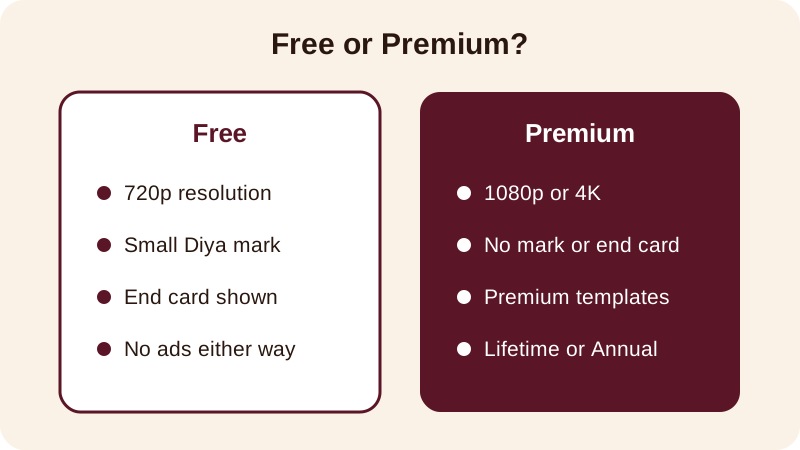
Free videos carry a small "Diya" mark and a short "Made with Diya" end card, and that's true for every free video, not just the first few. If you'd rather share a haldi video without the mark or end card, Premium — available as Lifetime, Monthly or Annual — removes both and unlocks Full HD 1080p, with 4K on Android, along with premium templates. There are no ads either way, free or Premium.
Diya works on Android and iPhone, through Google Play and the App Store, and the full app is available in 11 languages, so other family members can set it up in the language they're comfortable with.
If different sides of the family want slightly different versions — one with the bride's name emphasised, another with the groom's — you can make more than one video. Your first 2 videos are free, and after that one more free video every day means you don't have to settle for a single version on the day itself.
If you're also planning the wedding invitation or the sangeet video for the same function, have a look at the guide on making an engagement or roka ceremony video, and if you want more on choosing music for a festive video, read about adding background music to photos. For every other occasion coming up this season, browse the festival status video calendar or see what else Diya can make.
Frequently asked questions
How do I make a haldi ceremony status video on my phone?
Open Diya, pick a haldi or wedding template, add your favourite haldi photos, type the names or a wish, choose a song, and save. The whole video comes together in about 3 minutes and is ready to share straight to WhatsApp Status.
What photos should I use for a haldi status video?
Pick close shots of turmeric being applied, laughing faces, flower petals and haldi-covered hands. Four to six photos are enough — a mix of candid and posed shots keeps the video lively without the scroll feeling repeated.
Can I add a haldi song from my phone to the video?
Yes. Diya lets you use your own song from your phone or pick one from the free music library, and beat-sync changes the photos on the beat automatically, so you don't have to time anything yourself.
Is a haldi ceremony status video free to make?
Your first 2 videos are free, then you get 1 free video every day in 720p with a small "Diya" mark and a short end card. Premium removes the mark and end card and unlocks Full HD 1080p, with 4K on Android.
Can I put the bride's and groom's names on the haldi video?
Yes, Diya's name art turns a typed name into decorated lettering in styles like Outline, Neon or Matte, so you can add the bride's and groom's names, or the family name, right on the video.