Home › Blog › How to Make an Engagement Party Slideshow
How to Make an Engagement Party Slideshow
Last updated: October 21, 2026
A guide to making a sagai or roka engagement video on the phone using Diya, covering photo selection, names, music and how it leads into a wedding invitation with an RSVP link.
Published · Updated
Quick answer
To make an engagement party slideshow, pick a wedding or love template in Diya, add the couple's engagement photos, type their names or a wish, choose music, and save — the video is ready in about 3 minutes.
Key takeaways
- Open with a ring or couple close-up, then mix in family blessing and candid photos
- Type both names using name art so they stand out on the video
- Pick one song from the free music library or the couple's own song and let beat-sync handle timing
- Free gives your first 2 videos free, then 1 free video a day in 720p with a small Diya mark
- Premium removes the mark and end card and unlocks 1080p, or 4K on Android
If you are wondering how to make an engagement party slideshow for a sagai or roka, the simplest way is to open a wedding or love template in Diya, add the couple's photos, and type their names — the app turns it into a vertical video with music in about 3 minutes, right on your phone.
What photos should you pick for a sagai or roka video?
Pick photos that actually tell the story of the day, not every photo taken by every relative. A ring close-up, the couple together, the parents blessing them, and one or two candid laughing shots are usually enough to make the video feel complete.
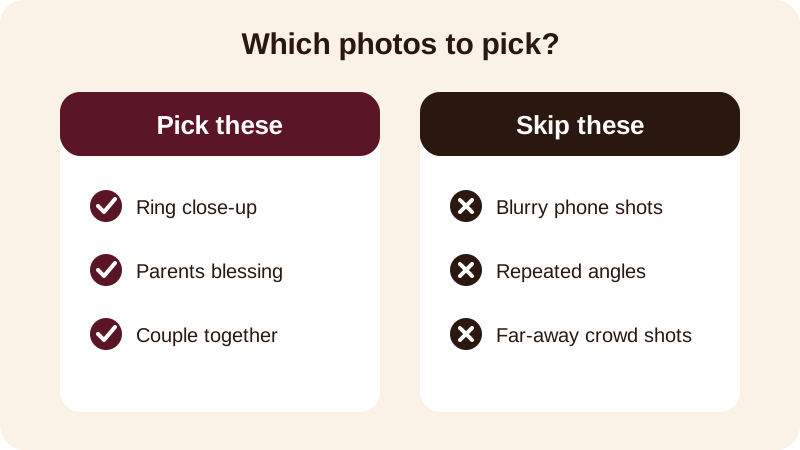
If relatives were clicking photos on their own phones, ask two or three of them to send their best two or three shots a week before you sit down to make the video. You will often get a close-up or an expression the couple's own camera missed.
How do you make the engagement video in Diya, step by step?
Once your photos are ready, building the video itself takes only a few taps. The real work — choosing and ordering photos — is already done by this point.
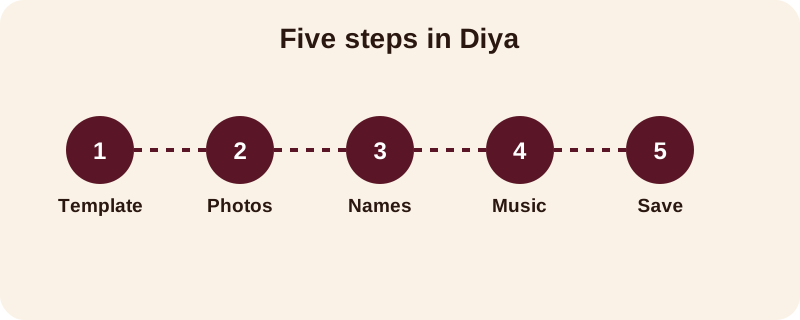
- Open Diya and choose a wedding or love template whose colours suit your photos.
- Add the couple's photos and arrange them so the ring, blessing and couple shots fall in the order you want.
- Type both names, or a short wish, using name art so the text stands out — try the Outline or Neon style for an evening sagai, or Matte for a daytime roka.
- Choose a song from the free music library, or pick a song saved on the phone, and let beat-sync change the photos in time with it.
- Preview the video with its Slide, Zoom or Fade transitions, then save it and share it straight to WhatsApp Status or wherever the family is waiting.
No account is needed to do any of this — you open the app, build the video, and it is made on your phone without the photos ever being uploaded anywhere. If you want more detail on getting the music and photo timing right, the guide on how to make a video from photos with music covers it step by step.
What should you write for the couple's names and wish?
Keep the text short enough to read in one glance. A full sentence works in a card, but on a video it should fit in a line or two.
- Congratulations, [Name] and [Name] — the sagai is just the beginning
- From engagement to forever — [Name] weds [Name]
- Roka done, wedding bells next — blessings to [Name] and [Name]
Name art turns the couple's names into decorated lettering, so even a plain "[Name] and [Name]" line looks finished without any extra design work from you. If the lyrics mode is turned on with your chosen song, the words show one line at a time in rhythm with the music — useful if the song itself has a line about love or togetherness that fits the occasion.
What music fits a sagai or roka video?
One song that means something to the couple works better than a generic romantic track. If a particular song played during the proposal, or it's simply a favourite of theirs, that is usually the right pick.
Diya's free music library gives you ready options sorted by mood, which is useful if you don't have a specific song in mind. If the family already has a song picked for the function, you can use that song from the phone instead — beat-sync will still line up the photo changes to its rhythm either way.
How does this video lead into the wedding invitation?
An engagement video usually isn't the last video the family makes for this couple — the wedding invitation comes next, often within weeks. Once the sagai or roka video has been shared and everyone has seen it, open a wedding invitation template in Diya for the next step.
A wedding invitation video can carry an RSVP link, so instead of family members calling or messaging each guest individually, the guest opens the link and replies directly — you can see who is coming without chasing anyone. Carry over the same couple photos and names you already picked for the engagement video, so the invitation feels connected to the sagai or roka rather than starting from scratch.
Where should you save and share the finished video?
Every Diya video exports in 9:16, which is the shape WhatsApp Status and Instagram already use — so there's no resizing or cropping needed before you share it. If the video is also going up on Instagram Reels, the guide on Instagram Reels orientation explains why that shape works best on a phone screen.
Your first 2 videos in Diya are free, and after that you get 1 free video every day, exported in 720p with a small "Diya" mark and a short "Made with Diya" end card. If you want the video without the mark and end card, or you want it sharper for a larger screen, Premium — available as Lifetime, Monthly or Annual — removes both and unlocks 1080p, or 4K on Android. There are no ads either way, free or Premium.
The app is made for India and works in 11 languages, so you can type the wish or the names in the language the family uses at home. Once you've made one engagement video this way, the wedding invitation and the wedding day video both go faster, since you already know which template, song and name art style suited this couple. For more ideas on turning a phone full of photos into a finished video, browse the rest of the blog or see what else Diya can make for the other functions still to come.
Frequently asked questions
Can I make a sagai or roka video without any editing skill?
Yes. Diya is built for this — you pick a template, add your photos, type the couple's names or a wish, and the app lays out the music and timing for you. There is nothing to cut or align by hand.
How many photos should I use for an engagement video?
A handful of well-chosen photos works better than dozens. Pick a ring or couple close-up to open, a few family or blessing moments in the middle, and close on the couple together, so the video has a clear shape.
Can I use the couple's own song instead of a template track?
Yes, Diya lets you use a song from the free music library or your own song saved on the phone. Beat-sync will still change the photos in time with whichever track you pick.
How do I make the invitation for the wedding after the engagement?
Once the sagai or roka video is shared, open a wedding invitation template in Diya for the wedding itself. You can add an RSVP link so guests reply directly, instead of calling or messaging each family member.
What is the difference between Free and Premium for this kind of video?
Free gives you your first 2 videos free, then 1 free video every day, exported in 720p with a small Diya mark and a short end card. Premium (Lifetime, Monthly or Annual) removes both and adds 1080p, or 4K on Android.