Home › Blog › How to Make a Ganesh Chaturthi Status Video
How to Make a Ganesh Chaturthi Status Video
Last updated: November 12, 2026
A how-to guide showing readers how to use Diya to turn their Ganesh Chaturthi photos into a 9:16 status video with music and a wish, ready for WhatsApp Status.
Published
Quick answer
To make a Ganesh Chaturthi status video, open Diya, pick a festival template, add 4 to 8 photos of Bappa, your pandal or home puja, type a short Ganpati wish, keep beat-sync on, and save the 9:16 video to share on WhatsApp Status.
Key takeaways
- Pick a festival template and add 4-8 clear photos of the murti, pandal or home puja.
- Type one short Ganpati wish instead of a long paragraph — it reads better on a phone.
- Beat-sync changes your photos on the beat, so you don't have to time anything yourself.
- Free videos carry a small Diya mark; Premium removes it and unlocks Full HD and 4K.
- Save the finished 9:16 video and share it straight to WhatsApp Status.
The fastest way to make a Ganesh Chaturthi status video is to start from a festival template in Diya, add four to eight photos of Bappa, your pandal or your home puja, and type a short wish. Diya puts the photos, music and text together into a vertical video in about 3 minutes, ready for WhatsApp Status.
Which photos make the best Ganesh Chaturthi status?
Pick photos that already carry the feeling of the festival: the murti freshly brought home, the decorated mandap, the family doing aarti, the modak thali before it is offered. You don't need every angle — one clear, well-lit photo per moment works better than ten similar ones taken seconds apart.
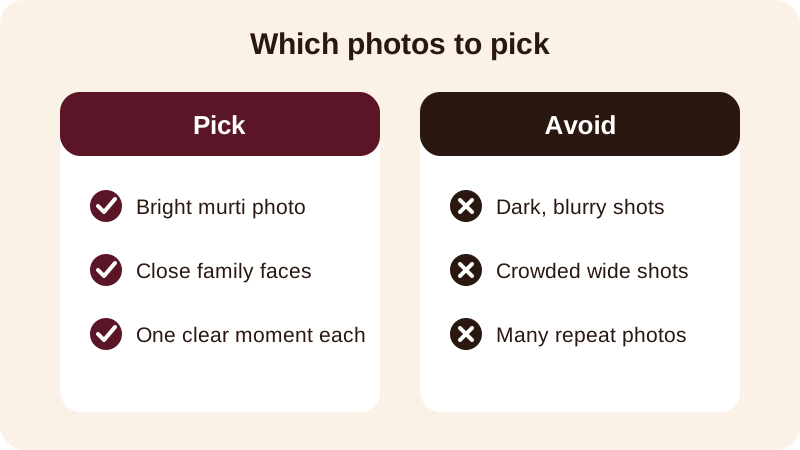
Put your strongest photo first, since that is what decides whether someone watches the rest. A close, bright photo of the murti or the first aarti usually works better than a wide shot of the whole street taken from far away.
If you are also making a separate video for visarjan day, keep the two sets of photos apart in your mind before you start. The sthapana-day video can lean on the home mandap, the kalash and the first aarti, while the visarjan video can lean on the procession, the dhol and drums, and the final goodbye at the water. Mixing both into one long video often makes it feel unfocused, and a status that runs too long loses viewers who are scrolling through many other stories that day.
How do you make it in Diya, step by step?
Once your photos are chosen, the actual making takes only a few taps. Here is the order to follow.
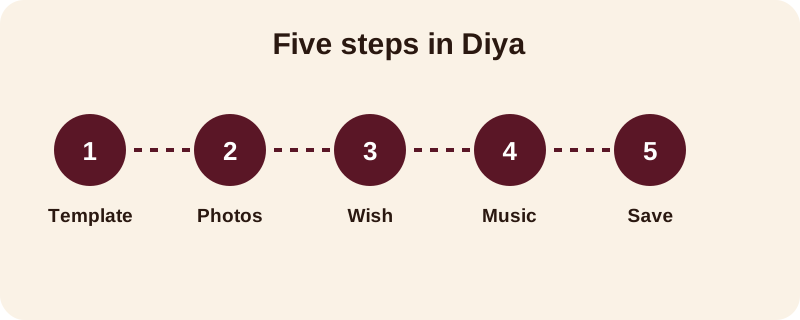
- Open Diya and choose a festival template whose colours suit your photos — gold, orange and red tones usually match a Ganesh Chaturthi theme well.
- Add your four to eight photos and arrange them in the order you want them to appear, murti and mandap photos first.
- Type your wish where the sample text sits, replacing it with your own line and, if you like, your family or society name.
- Check the music — keep the template's song or pick another one from the free music library, or use your own bhajan or song from your phone.
- Save the video and share it straight to WhatsApp Status, in the vertical 9:16 shape it was already made in.
Beat-sync is on by default, so the photos change on the beat of the song without you timing anything. If you add lyrics mode with a bhajan, one line of the song shows on screen at a time instead of the full text at once, which keeps the screen readable even when the family is watching together on one phone.
Which transition and name art style suits Ganpati visuals?
Diya's templates come with built-in motion and lettering styles, and you can usually keep the template's default or swap it for one that fits your photos better.
| Style | Works well for |
|---|---|
| Slide transition | Moving between several photos of the pandal and family moments |
| Zoom transition | Drawing attention to one close photo, like the murti or the thali |
| Fade transition | A calm, devotional feel, good for aarti shots |
| Outline name art | Staying readable over a busy or bright background photo |
| Neon name art | A brighter, more festive look for the family name |
| Matte name art | A subtle look that blends with traditional gold and red themes |
There is no single right choice here — Slide, Zoom and Fade transitions and Outline, Neon and Matte name art styles all suit different photo sets. Try the template's default first, and only change it if your photos feel too busy or the name is hard to read.
What should you write as a Ganpati wish?
A short, warm line reads better on a phone than a long paragraph. One line at a time is easy to read before the video moves on; three or four lines stacked together are not. A few that work well as they are, or with your own name added:
- Ganpati Bappa Morya — may this year bring happiness to your home
- Wishing you and your family a blessed Ganesh Chaturthi
- Shubh Ganesh Chaturthi from the Deshmukh family
- Ganpati Bappa Morya, Pudhchya Varshi Laukar Ya — for your visarjan day video
Use name art if you want the family or society name to stand out as decorated lettering on screen, rather than plain typed text sitting over the photo. Since the app's full interface is available in 11 languages, you can also write the wish itself in the language your family actually reads at home — Marathi, Hindi, Gujarati or others — instead of translating it into English first.
Can the same video go on Instagram too, not just WhatsApp?
Yes. Every Diya video is already made in the vertical 9:16 shape, which is the shape Instagram Reels and Stories expect, so you don't need to crop or resize anything before posting it in a second place. If you want to understand why this shape works better than a horizontal video on a phone screen, the guide on Instagram Reels orientation explains it in more detail.
Many families post the same Ganpati video to WhatsApp Status first, then to Instagram a little later in the day once more photos from the puja have come in from relatives. You can make a second, slightly different version with the newer photos rather than reusing the exact same file twice.
What does the free version include, and does it work on any phone?
Your first 2 videos are free, then you get 1 free video every day, in 720p, with a small Diya mark and a short Made with Diya end card. Premium, available as Lifetime, Monthly or Annual, removes both and unlocks Full HD 1080p, with 4K on Android, along with premium templates. There are no ads either way, and your photos are made into the video on your own phone — they are never uploaded anywhere, and no account is needed to start. Diya works on Android and iPhone, through Google Play and the App Store.
If you have more festivals coming up after visarjan, a festival calendar inside the app reminds you before the day so you are not making the video in a rush at the last minute. You can also check how to add background music to a photo video if you want more detail on picking a song and keeping it in sync with your photos, or browse the blog and the homepage for more festival video guides through the year.
Frequently asked questions
How many photos should I use for a Ganesh Chaturthi status video?
Four to eight photos is enough. Use your best shot of the murti, one of the pandal or home mandap, and one or two of the family doing aarti. More photos make the video longer than a status needs to be, and viewers scroll past before it finishes.
Can I add my own aarti song to the video?
Yes, Diya lets you pick a song from your phone instead of the free music library. Choose something you are comfortable sharing publicly, since Diya does not check or clear music rights for any song you add.
Can I put my family's name on the Ganpati video?
Yes, use name art to turn a typed name into decorated lettering on screen. It works well for a family name, a housing society name, or the name of whoever is hosting the puja that year.
Does the video work for visarjan day too?
Yes, the same template style works for visarjan. Add photos from the procession or the final aarti, change the wish line to a farewell message like Ganpati Bappa Morya, Pudhchya Varshi Laukar Ya, and save a fresh video for that day.
Will the free video have any mark on it?
Your first 2 videos are free, then you get 1 free video every day, in 720p, with a small Diya mark and a short Made with Diya end card. Premium removes both and unlocks Full HD and 4K on Android.